

Stable Diffusion: 잠재 확산 모델의 구조와 실전 활용
LDM 아키텍처, VAE·U-Net·CLIP 구성, text2img·img2img·inpainting 코드, SDXL·SD3까지 버전 비교와 diffusers 실전 사용법을 완전 해설합니다.
지난 글에서 확산 모델의 수학적 원리인 순방향·역방향 과정과 노이즈 스케줄러를 다뤘다. 이번 글에서는 이 원리를 잠재 공간(Latent Space)으로 이동시켜 실용적으로 만든 Stable Diffusion의 전체 파이프라인과 실전 사용법을 다룬다.
Latent Diffusion Model(LDM)의 핵심 혁신
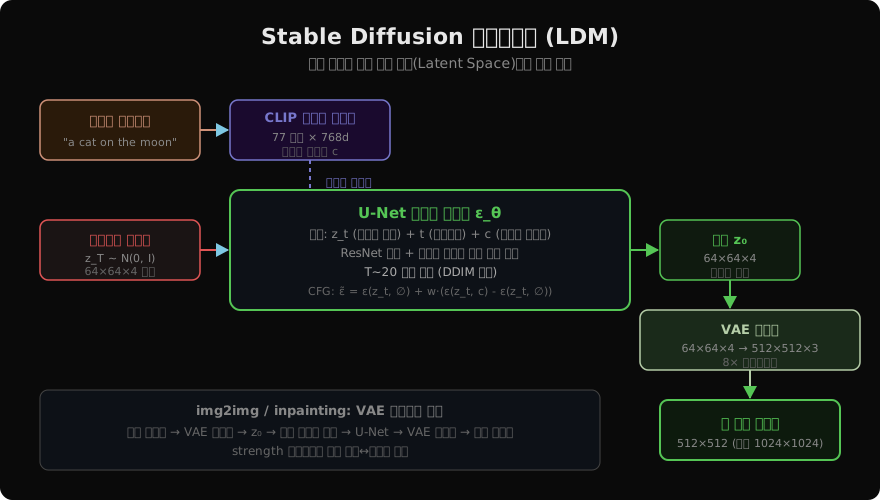
픽셀 공간에서 직접 확산을 수행하면 512×512 이미지도 매우 무겁다. LDM의 핵심 아이디어는 VAE로 이미지를 먼저 압축한 뒤, 작은 잠재 공간에서 확산을 수행하는 것이다. 512×512 픽셀 이미지는 VAE 인코더를 통해 64×64×4 잠재 벡터로 8배 압축된다. 확산 과정은 이 잠재 공간에서 이루어져 메모리와 연산량이 크게 줄어든다.
diffusers로 text2img 구현
import torch
from diffusers import StableDiffusionPipeline, DPMSolverMultistepScheduler

def load_pipeline(
    model_id: str = "runwayml/stable-diffusion-v1-5",
    device: str = "cuda",
) -> StableDiffusionPipeline:
    pipe = StableDiffusionPipeline.from_pretrained(
        model_id,
        torch_dtype=torch.float16,
        safety_checker=None,
    )
    # 빠른 스케줄러로 교체
    pipe.scheduler = DPMSolverMultistepScheduler.from_config(
        pipe.scheduler.config,
        algorithm_type="dpmsolver++",
    )
    pipe = pipe.to(device)
    pipe.enable_attention_slicing()      # VRAM 절약
    pipe.enable_xformers_memory_efficient_attention()
    return pipe


pipe = load_pipeline()

image = pipe(
    prompt=(
        "a majestic white dragon soaring over snowy mountains, "
        "epic fantasy art, golden hour lighting, highly detailed"
    ),
    negative_prompt=(
        "blurry, low quality, ugly, deformed, "
        "watermark, text, nsfw"
    ),
    num_inference_steps=25,
    guidance_scale=7.5,
    width=512,
    height=512,
    generator=torch.Generator(device="cuda").manual_seed(42),
).images[0]

image.save("dragon.png")
img2img: 기존 이미지 변환
from diffusers import StableDiffusionImg2ImgPipeline
from PIL import Image

pipe_i2i = StableDiffusionImg2ImgPipeline.from_pretrained(
    "runwayml/stable-diffusion-v1-5",
    torch_dtype=torch.float16,
).to("cuda")

init_image = Image.open("sketch.png").convert("RGB").resize((512, 512))

image = pipe_i2i(
    prompt="a detailed oil painting of a mountain landscape",
    image=init_image,
    strength=0.75,   # 0=원본 유지, 1=완전 재생성
    guidance_scale=7.5,
    num_inference_steps=30,
).images[0]

# strength=0.75 → 약 23 스텝부터 노이즈 추가 후 역방향 수행
image.save("oil_painting.png")
strength 파라미터가 핵심이다. 0에 가까울수록 원본을 보존하고, 1에 가까울수록 완전히 재생성한다. 일반적으로 0.5~0.8 범위가 원본 구도를 유지하면서 스타일을 바꾸기에 적합하다.
inpainting: 이미지 부분 편집
from diffusers import StableDiffusionInpaintPipeline

pipe_inp = StableDiffusionInpaintPipeline.from_pretrained(
    "runwayml/stable-diffusion-inpainting",
    torch_dtype=torch.float16,
).to("cuda")

image = Image.open("portrait.png").convert("RGB")
mask_image = Image.open("mask.png").convert("RGB")
# mask: 흰색=편집 영역, 검은색=보존 영역

result = pipe_inp(
    prompt="a smiling face with sunglasses",
    image=image,
    mask_image=mask_image,
    num_inference_steps=30,
    guidance_scale=7.5,
).images[0]

result.save("inpainted.png")
SDXL 파이프라인
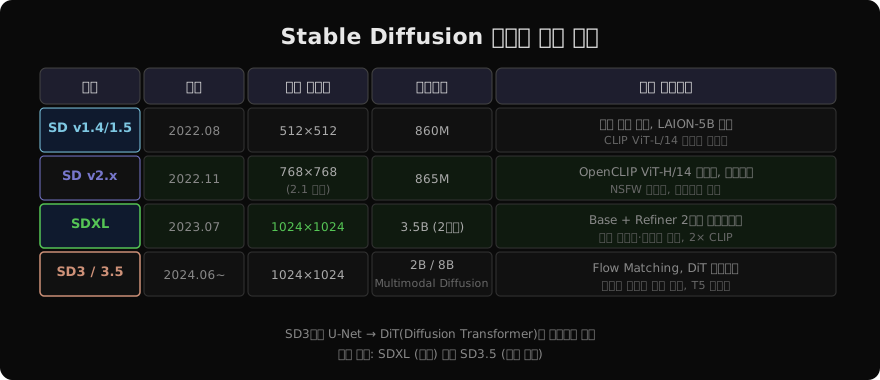
SDXL은 Base 모델과 Refiner 모델의 2단계 파이프라인을 사용한다. Base가 전체 구도를 잡고, Refiner가 세부 품질을 높인다.
from diffusers import (
    StableDiffusionXLPipeline,
    StableDiffusionXLImg2ImgPipeline,
)

base = StableDiffusionXLPipeline.from_pretrained(
    "stabilityai/stable-diffusion-xl-base-1.0",
    torch_dtype=torch.float16,
    use_safetensors=True,
).to("cuda")

refiner = StableDiffusionXLImg2ImgPipeline.from_pretrained(
    "stabilityai/stable-diffusion-xl-refiner-1.0",
    text_encoder_2=base.text_encoder_2,
    vae=base.vae,
    torch_dtype=torch.float16,
    use_safetensors=True,
).to("cuda")

prompt = "a photorealistic portrait of a samurai in rain, cinematic"

# 1단계: Base (80% 스텝)
n_steps, high_noise_frac = 40, 0.8
image = base(
    prompt=prompt,
    num_inference_steps=n_steps,
    denoising_end=high_noise_frac,
    output_type="latent",
).images

# 2단계: Refiner (나머지 20% 스텝)
image = refiner(
    prompt=prompt,
    num_inference_steps=n_steps,
    denoising_start=high_noise_frac,
    image=image,
).images[0]

image.save("samurai.png")
Stable Diffusion 버전 비교
프롬프트 엔지니어링 팁
# 효과적인 프롬프트 구조
prompt = (
    # 1. 주제
    "a majestic white wolf, "
    # 2. 스타일/매체
    "digital art, concept art, "
    # 3. 품질 부스터
    "highly detailed, 4k, sharp focus, "
    # 4. 조명/분위기
    "golden hour lighting, cinematic, "
    # 5. 아티스트/참조
    "artstation trending, Greg Rutkowski style"
)

negative_prompt = (
    "blurry, low quality, low resolution, "
    "ugly, deformed, extra limbs, "
    "watermark, signature, text, "
    "overexposed, washed out colors"
)
VRAM 최적화
GPU 메모리가 부족할 때는 다음 옵션을 조합한다.
# 4GB VRAM에서도 동작하는 설정
pipe.enable_sequential_cpu_offload()   # 레이어별 CPU 오프로드
pipe.enable_attention_slicing(1)       # 어텐션 슬라이싱
pipe.enable_vae_slicing()             # VAE 슬라이싱

# 8GB VRAM: 더 빠른 설정
pipe.enable_model_cpu_offload()        # 모델 단위 오프로드
pipe.enable_xformers_memory_efficient_attention()
다음 글에서는 Stable Diffusion에 정밀한 제어 신호를 추가하는 ControlNet의 구조와 활용법을 다룬다.
지난 글: 확산 모델(Diffusion Model) 기초: 노이즈에서 이미지로
다음 글: ControlNet: 포즈·깊이·엣지로 확산 모델을 정밀 제어하기
읽어주셔서 감사합니다. 😊