

프라이빗 레지스트리 구축과 운영
registry:2로 셀프 호스팅 레지스트리를 구축하는 방법, htpasswd 인증, TLS 설정, S3 스토리지 연동, Harbor와의 비교, 가비지 컬렉션까지 실전 중심으로 설명합니다.
지난 글에서 Docker Hub의 Rate Limit와 태그 전략을 다뤘다. 조직 내부에서만 사용하는 이미지나 보안 규정상 외부 레지스트리를 쓸 수 없는 경우라면 프라이빗 레지스트리를 직접 운영해야 한다.
registry:2로 빠르게 시작
Docker 공식 registry:2 이미지는 OCI Distribution Spec을 구현한 경량 레지스트리다. 단 하나의 컨테이너로 시작할 수 있다.
# 인증 없는 로컬 테스트용
docker run -d \
  --name registry \
  -p 5000:5000 \
  -v $(pwd)/registry-data:/var/lib/registry \
  registry:2
# 동작 확인
curl http://localhost:5000/v2/
# {"errors": []} ← 빈 배열이면 정상 (인증 없음)
# 이미지 push/pull 테스트
docker pull hello-world
docker tag hello-world localhost:5000/hello-world:test
docker push localhost:5000/hello-world:test
docker pull localhost:5000/hello-world:testhtpasswd 인증 설정
인증 없는 레지스트리는 로컬 테스트에만 사용한다. 팀이 함께 쓰는 레지스트리라면 반드시 인증을 추가한다.
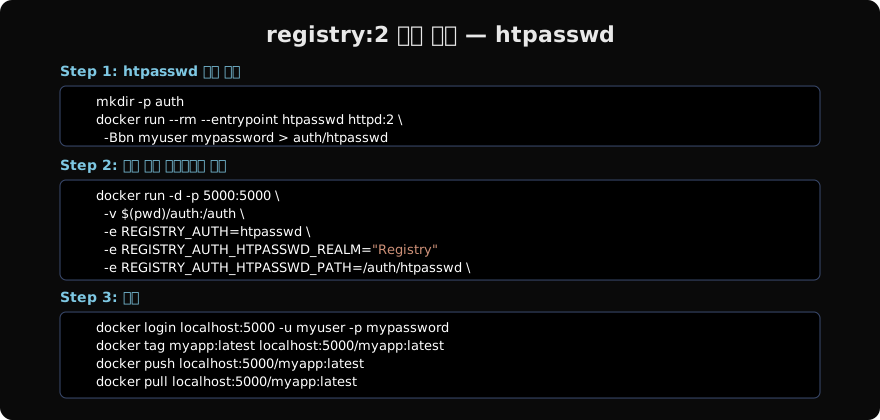
# htpasswd 파일 생성 (-B: bcrypt 암호화)
mkdir -p auth
docker run --rm --entrypoint htpasswd httpd:2 \
  -Bbn user1 password1 > auth/htpasswd
docker run --rm --entrypoint htpasswd httpd:2 \
  -Bbn user2 password2 >> auth/htpasswd
TLS (HTTPS) 설정
# 자체 서명 인증서 생성 (개발/내부용)
mkdir -p certs
openssl req -newkey rsa:4096 -nodes -sha256 \
  -keyout certs/domain.key \
  -x509 -days 365 \
  -out certs/domain.crt \
  -subj "/CN=registry.internal"

# TLS + 인증 레지스트리 실행
docker run -d \
  --name registry \
  -p 443:5000 \
  -v $(pwd)/certs:/certs \
  -v $(pwd)/auth:/auth \
  -v $(pwd)/data:/var/lib/registry \
  -e REGISTRY_HTTP_TLS_CERTIFICATE=/certs/domain.crt \
  -e REGISTRY_HTTP_TLS_KEY=/certs/domain.key \
  -e REGISTRY_AUTH=htpasswd \
  -e REGISTRY_AUTH_HTPASSWD_REALM="Registry Realm" \
  -e REGISTRY_AUTH_HTPASSWD_PATH=/auth/htpasswd \
  registry:2
자체 서명 인증서를 쓰는 경우 Docker 클라이언트에 CA를 등록해야 한다:
# Linux
sudo cp certs/domain.crt /etc/docker/certs.d/registry.internal:443/ca.crt
sudo systemctl restart docker

# macOS: Docker Desktop → Preferences → Docker Engine
# daemon.json에 "insecure-registries" 추가 (HTTP 또는 자체 서명 HTTPS)
S3 스토리지 연동
단일 서버의 로컬 스토리지 대신 S3를 백엔드로 쓰면 레지스트리를 스케일아웃하거나 서버를 교체해도 이미지가 유지된다.
# config.yml
version: 0.1
storage:
  s3:
    region: ap-northeast-2
    bucket: my-registry-bucket
    encrypt: true
    secure: true
http:
  addr: :5000
  tls:
    certificate: /certs/domain.crt
    key: /certs/domain.key
auth:
  htpasswd:
    realm: "Registry Realm"
    path: /auth/htpasswd
docker run -d \
-p 443:5000 \
-v $(pwd)/config.yml:/etc/docker/registry/config.yml \
-e AWS_ACCESS_KEY_ID="$AWS_ACCESS_KEY_ID" \
-e AWS_SECRET_ACCESS_KEY="$AWS_SECRET_ACCESS_KEY" \
registry:2Harbor: 엔터프라이즈 레지스트리
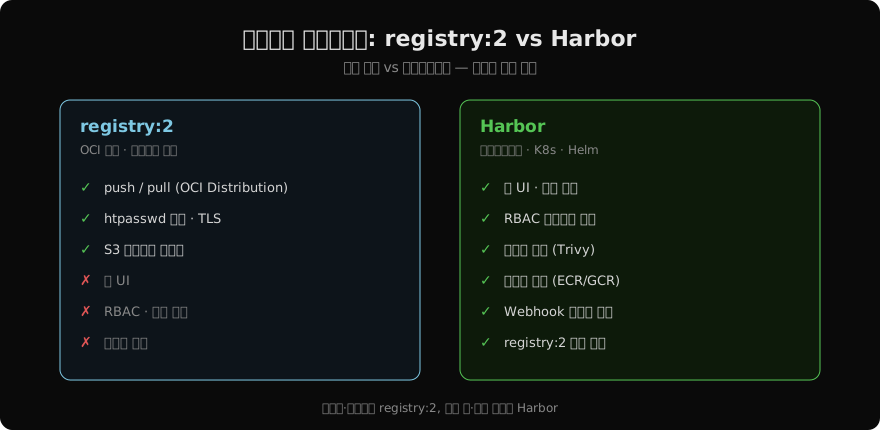
규모가 커지면 registry:2의 단순함이 불편해진다 — UI 없고, RBAC 없고, 이미지 스캔 없다. Harbor는 이 모든 것을 제공한다.
# Helm으로 Harbor 설치 (Kubernetes)
helm repo add harbor https://helm.goharbor.io
helm install harbor harbor/harbor \
  --set expose.type=ingress \
  --set expose.tls.enabled=true \
  --set externalURL=https://registry.mycompany.com \
  --set harborAdminPassword=MyAdminPassword
Harbor 주요 기능:
- 웹 UI: 이미지 목록, 태그 관리, 취약점 스캔 결과 시각화
- RBAC: 프로젝트별 권한 (Guest/Developer/Maintainer/ProjectAdmin)
- 취약점 스캔: Trivy 또는 Clair 통합
- 이미지 복제: 다른 Harbor 또는 ECR/GCR로 자동 복제
- Webhook: 이미지 push/delete 이벤트 알림
가비지 컬렉션
이미지 태그를 삭제해도 레이어 데이터는 즉시 삭제되지 않는다. 주기적으로 GC를 실행해야 디스크를 정리할 수 있다.
# registry:2 GC
docker exec registry \
  registry garbage-collect /etc/docker/registry/config.yml

# dry-run으로 먼저 확인
docker exec registry \
  registry garbage-collect --dry-run /etc/docker/registry/config.yml
GC 동안 레지스트리를 읽기 전용으로 설정하는 것이 안전하다:
docker exec registry \
  registry garbage-collect \
  --delete-untagged=true \
  /etc/docker/registry/config.yml
Docker Compose로 레지스트리 + UI 운영
# docker-compose.yml
services:
  registry:
    image: registry:2
    ports:
      - "5000:5000"
    volumes:
      - ./auth:/auth
      - ./data:/var/lib/registry
    environment:
      REGISTRY_AUTH: htpasswd
      REGISTRY_AUTH_HTPASSWD_REALM: "Registry Realm"
      REGISTRY_AUTH_HTPASSWD_PATH: /auth/htpasswd

  registry-ui:
    image: joxit/docker-registry-ui:latest
    ports:
      - "8080:80"
    environment:
      REGISTRY_TITLE: "My Registry"
      REGISTRY_URL: http://registry:5000
      SINGLE_REGISTRY: "true"
    depends_on:
      - registry
docker compose up -d
# http://localhost:8080 에서 UI 확인지난 글: Docker Hub 완전 정복: pull, push, 태그, Rate Limit
다음 글: Harbor로 엔터프라이즈 레지스트리 구축하기
읽어주셔서 감사합니다. 😊
PALDYN / ARTICLE AI
글의 개념, 수식, 코드에 대해 물어보세요.
질문과 관련된 문단을 골라 답변의 문맥으로 사용합니다.생각 중 · 0초