

지식
Linux
curl·wget — HTTP 요청과 파일 다운로드
curl로 REST API 호출·헤더 조작·인증·TLS 디버깅, wget으로 재귀 다운로드·이어받기·속도 제한하는 방법, 두 도구의 용도별 선택 기준을 정리합니다.
지난 글에서 DNS 질의 도구를 다뤘습니다. 이제 HTTP 레이어로 올라와 curl과 wget을 살펴봅니다. 두 도구는 모두 URL에서 데이터를 받아오지만 설계 철학이 다릅니다. curl은 “모든 프로토콜의 데이터 전송 라이브러리”를, wget은 “웹 파일 다운로더”를 지향합니다.
curl 기초
curl의 기본 출력은 stdout입니다. 파이프로 다른 명령에 바로 넘길 수 있습니다.
# 응답 본문 출력
curl https://example.com

# 파일로 저장 (-O: 원본 파일명, -o: 이름 지정)
curl -O https://example.com/file.tar.gz
curl -o myfile.tar.gz https://example.com/file.tar.gz

# 리다이렉트 따라가기 (-L)
curl -L https://github.com/torvalds/linux/archive/HEAD.zip -O

# 진행률 표시 없이 조용히 (-s)
curl -s https://api.ipify.org

# 헤더 포함 상세 출력 (-v), 더 자세히 (-sv)
curl -sv https://example.com
HTTP 메서드와 헤더
# POST — JSON 전송
curl -X POST \
     -H "Content-Type: application/json" \
     -d '{"username":"paldyn","password":"secret"}' \
     https://api.example.com/login

# PUT
curl -X PUT \
     -H "Authorization: Bearer $TOKEN" \
     -H "Content-Type: application/json" \
     -d '{"name":"updated"}' \
     https://api.example.com/users/1

# DELETE
curl -X DELETE \
     -H "Authorization: Bearer $TOKEN" \
     https://api.example.com/users/1

# 파일 업로드 (multipart)
curl -F "file=@/path/to/image.png" \
     -F "description=profile" \
     https://api.example.com/upload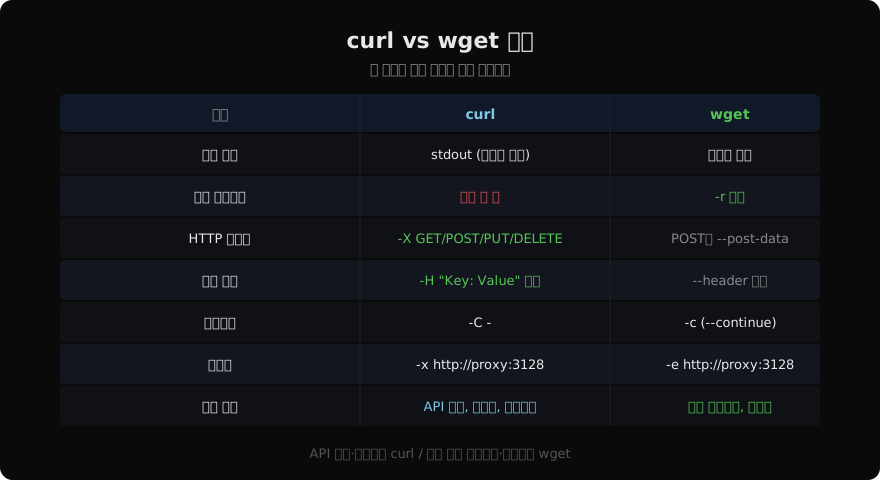
curl로 API 디버깅
# HTTP 상태 코드만 출력
curl -s -o /dev/null -w "%{http_code}" https://example.com

# 응답 헤더만
curl -I https://example.com

# 시간 측정 (속도 진단)
curl -s -o /dev/null -w "dns:%{time_namelookup}s connect:%{time_connect}s total:%{time_total}s\n" \
     https://example.com

# 쿠키 저장/사용
curl -c cookies.txt -b cookies.txt https://example.com/login
TLS 관련
# TLS 인증서 무시 (테스트 환경, 비권장)
curl -k https://self-signed.example.com

# 커스텀 CA 인증서 사용
curl --cacert /path/to/ca.crt https://internal.example.com

# 클라이언트 인증서
curl --cert client.crt --key client.key https://mtls.example.com

# TLS 버전 강제
curl --tlsv1.3 https://example.com
이어받기와 속도 제한
# 이어받기 (-C -)
curl -C - -O https://example.com/large.iso

# 속도 제한
curl --limit-rate 1M -O https://example.com/large.iso

# 타임아웃
curl --max-time 10 https://slow.example.com
curl --connect-timeout 5 https://example.com
wget 기초
wget은 기본적으로 파일로 저장합니다. 재귀 다운로드와 이어받기가 강점입니다.
# 기본 다운로드
wget https://example.com/file.tar.gz

# 이어받기
wget -c https://example.com/large.iso

# 조용히
wget -q https://example.com/file.tar.gz

# URL 목록 파일
wget -i urls.txt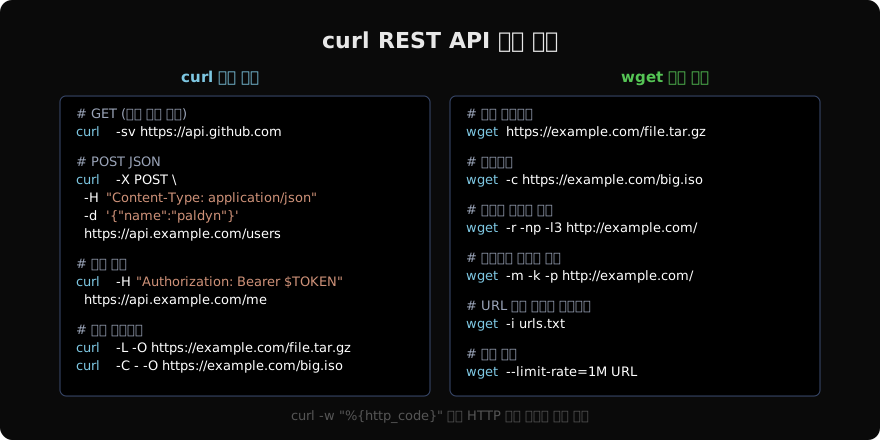
wget 재귀 다운로드
# 재귀 (-r), 부모 디렉터리 제외 (-np), 깊이 3 (-l3)
wget -r -np -l3 https://docs.example.com/

# 오프라인 뷰용 완전 미러 (-m: 타임스탬프 포함, -k: 링크 변환, -p: 페이지 자원 모두)
wget -m -k -p https://example.com/

# 특정 확장자만
wget -r -A "*.pdf" https://example.com/docs/

# 속도 제한
wget --limit-rate=500k https://example.com/large.iso
wget 인증 및 헤더
# Basic 인증
wget --user=admin --password=secret https://example.com/protected/

# 커스텀 헤더
wget --header="Authorization: Bearer $TOKEN" https://api.example.com/data

# 쿠키
wget --load-cookies cookies.txt --save-cookies cookies.txt https://example.com
프록시 설정
두 도구 모두 환경 변수 http_proxy, https_proxy를 지원합니다.
# 환경 변수로 설정
export http_proxy=http://proxy.example.com:3128
export https_proxy=http://proxy.example.com:3128
curl https://example.com

# 명령어 옵션
curl -x http://proxy.example.com:3128 https://example.com
wget -e use_proxy=yes -e https_proxy=http://proxy.example.com:3128 https://example.com
실전 스크립팅 패턴
# GitHub API 호출 + jq 파싱
curl -s https://api.github.com/repos/torvalds/linux/releases/latest \
  | python3 -m json.tool | grep '"tag_name"'

# 헬스체크 스크립트
check_health() {
    code=$(curl -s -o /dev/null -w "%{http_code}" --max-time 5 "$1")
    [ "$code" = "200" ] && echo "OK" || echo "FAIL ($code)"
}
check_health https://example.com

# 여러 URL 병렬 다운로드
cat urls.txt | xargs -P4 -I{} wget -q {}
정리
API 호출, 헤더 조작, TLS 디버깅, HTTP 상태 코드 확인에는 curl이 우월합니다. 파일 대량 다운로드, 사이트 미러, 이어받기 편의성에는 wget이 낫습니다. 두 도구를 함께 익혀두면 어떤 HTTP 상황에서도 대처할 수 있습니다.
지난 글: dig·nslookup·host — DNS 질의 도구 완전 가이드
다음 글: tcpdump — 패킷 캡처 기초
읽어주셔서 감사합니다. 😊
PALDYN / ARTICLE AI
글의 개념, 수식, 코드에 대해 물어보세요.
질문과 관련된 문단을 골라 답변의 문맥으로 사용합니다.생각 중 · 0초