

디버깅 · Node.js inspect와 진단 도구
Node.js --inspect 플래그로 Chrome DevTools와 VS Code 디버거를 연결하는 방법을 설명합니다. 중단점 설정, 힙 스냅샷, CPU 프로파일, --cpu-prof/--heap-prof, 진단 리포트, util.inspect, console.time 패턴을 다룹니다.
지난 글에서 process 객체와 환경 변수를 살펴봤습니다. 코드가 예상과 다르게 동작할 때, console.log만으로는 한계가 있습니다. Node.js는 V8 Inspector Protocol을 통해 Chrome DevTools와 VS Code 디버거를 직접 연결할 수 있습니다.
—inspect 플래그
# 기본 — 9229 포트에서 Inspector 대기
node --inspect app.js

# 첫 줄에서 중단 (초기화 코드 디버깅)
node --inspect-brk app.js

# 포트 지정
node --inspect=0.0.0.0:9229 app.js

# 실행 중인 프로세스에 연결
node --inspect $(pgrep -f app.js)
# 또는
kill -SIGUSR1 <PID>
Inspector가 활성화되면 ws://127.0.0.1:9229/<UUID> 엔드포인트가 열립니다.
디버깅 워크플로우
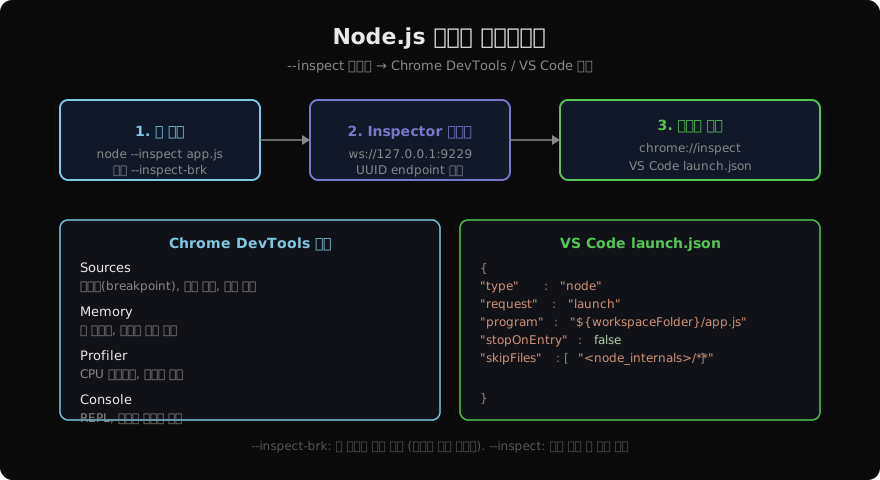
Chrome DevTools 연결
chrome://inspect접속- “Remote Target” 목록에서 앱 선택 → “inspect” 클릭
- Sources 탭에서 파일 탐색, 중단점 설정
VS Code 설정
.vscode/launch.json을 생성하거나 “Run and Debug” 패널에서 “Node.js” 선택:
{
  "version": "0.2.0",
  "configurations": [
    {
      "type": "node",
      "request": "launch",
      "name": "앱 디버깅",
      "program": "${workspaceFolder}/app.js",
      "env": { "NODE_ENV": "development" },
      "skipFiles": ["<node_internals>/**"]
    },
    {
      "type": "node",
      "request": "attach",
      "name": "실행 중인 프로세스 연결",
      "port": 9229,
      "restart": true
    }
  ]
}
내장 진단 도구
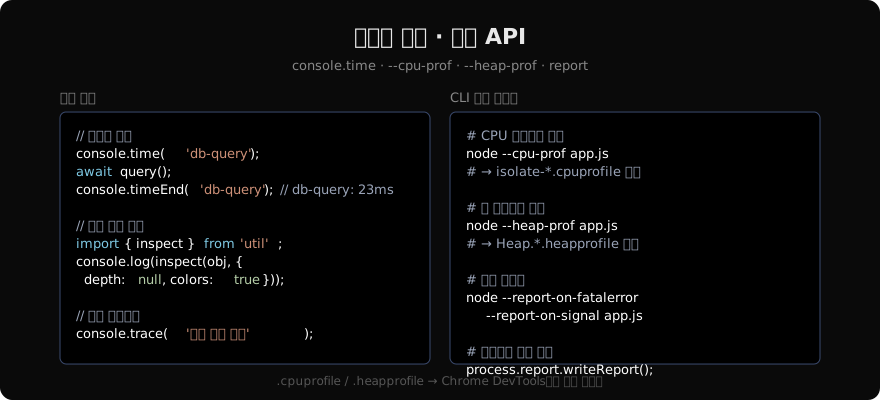
console 진단 메서드
// 타이밍 측정
console.time('query');
const rows = await db.query('SELECT ...');
console.timeEnd('query'); // query: 42.156ms

// 계층 그루핑
console.group('사용자 인증');
console.log('토큰 검증');
console.groupEnd();

// 스택 트레이스
console.trace('호출 위치 확인');

// 테이블 출력
console.table([{ id: 1, name: 'Alice' }, { id: 2, name: 'Bob' }]);
util.inspect — 깊은 객체 출력
import { inspect } from 'util';

const complex = { a: { b: { c: { d: 'deep' } } } };

// console.log는 깊이 제한 있음
console.log(complex); // { a: { b: { c: [Object] } } }

// inspect로 전체 출력
console.log(inspect(complex, { depth: null, colors: true }));
// { a: { b: { c: { d: 'deep' } } } }
CPU 프로파일링
# 앱 실행 + CPU 프로파일 생성
node --cpu-prof --cpu-prof-dir=./profiles app.js

# 특정 간격 동안만 (ms)
node --cpu-prof --cpu-prof-interval=100 app.js
생성된 .cpuprofile 파일을 Chrome DevTools → Performance 탭에서 열면 플레임 차트로 시각화됩니다.
코드에서 직접 프로파일링:
import { Session } from 'inspector/promises';
import { writeFileSync } from 'fs';

const session = new Session();
session.connect();

await session.post('Profiler.enable');
await session.post('Profiler.start');

// 프로파일할 코드 실행
await heavyWork();

const { profile } = await session.post('Profiler.stop');
writeFileSync('./profile.cpuprofile', JSON.stringify(profile));
session.disconnect();
힙 스냅샷 — 메모리 누수 탐지
import { writeHeapSnapshot } from 'v8';

// 힙 스냅샷 파일 생성
const filename = writeHeapSnapshot('./snapshots/');
console.log('힙 스냅샷:', filename);

// 주기적 힙 스냅샷으로 메모리 증가 추적
let snapshotCount = 0;
setInterval(() => {
  const mem = process.memoryUsage();
  if (mem.heapUsed > 500 * 1024 * 1024) { // 500MB 초과
    writeHeapSnapshot(`./leak-${snapshotCount++}.heapsnapshot`);
  }
}, 30_000);
Chrome DevTools → Memory 탭에서 두 스냅샷을 비교하면 늘어난 객체를 찾을 수 있습니다.
진단 리포트
Node.js 진단 리포트는 크래시나 이상 상황 발생 시 자동으로 JSON 파일을 생성합니다.
# 비정상 종료 시 리포트 생성
node --report-on-fatalerror app.js

# SIGUSR2 시그널 수신 시 생성
node --report-on-signal app.js

# 일정 시간마다 생성
node --report-signal=SIGUSR2 app.js
// 코드에서 직접 생성
process.report.writeReport(); // 현재 디렉터리에 파일 생성
process.report.getReport(); // JSON 객체 반환 (전송 등에 활용)NODE_DEBUG — 내장 모듈 디버깅
# http 모듈 디버그 로그 활성화
NODE_DEBUG=http node app.js

# 복수 모듈
NODE_DEBUG=http,net,cluster node app.js

# fs, stream, net, http, module 등 지원
NODE_DEBUG=module node app.js   # require/import 경로 해석 추적
지난 글: process · Node.js 프로세스 환경
다음 글: npm · yarn · pnpm 패키지 매니저 비교
읽어주셔서 감사합니다. 😊
PALDYN / ARTICLE AI
글의 개념, 수식, 코드에 대해 물어보세요.
질문과 관련된 문단을 골라 답변의 문맥으로 사용합니다.생각 중 · 0초