

shutil: 고수준 파일 복사·이동·압축
Python shutil 모듈로 파일과 디렉토리를 다루는 법을 설명합니다. copy, copy2, copytree, move, rmtree, make_archive, disk_usage 등 실무 패턴을 정리합니다.
지난 글에서 sys 모듈로 인터프리터와 상호작용하는 방법을 다뤘습니다. 이번에는 shutil(shell utility) 모듈을 살펴봅니다. os 모듈이 기본적인 파일/디렉토리 조작을 담당한다면, shutil은 파일 복사·이동·삭제·압축처럼 실제 쉘 명령어 수준의 고수준 작업을 처리합니다.
shutil 모듈 개요
shutil은 os.rename(), os.remove() 등으로는 불편한 작업들을 간단하게 처리합니다. 파일시스템 경계를 넘나드는 이동, 디렉토리 트리 통째로 복사, zip/tar 파일 생성 등이 대표적입니다.
import shutil

# 지원 포맷 확인
print(shutil.get_archive_formats())
# [('bztar', ...), ('gztar', ...), ('tar', ...), ('xztar', ...), ('zip', ...)]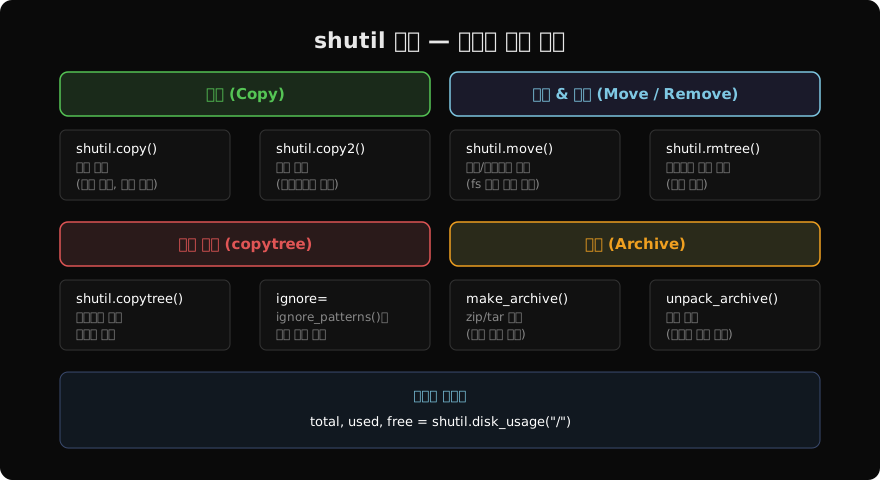
파일 복사
import shutil

# copy: 파일 내용 + 권한 복사 (타임스탬프는 현재 시각)
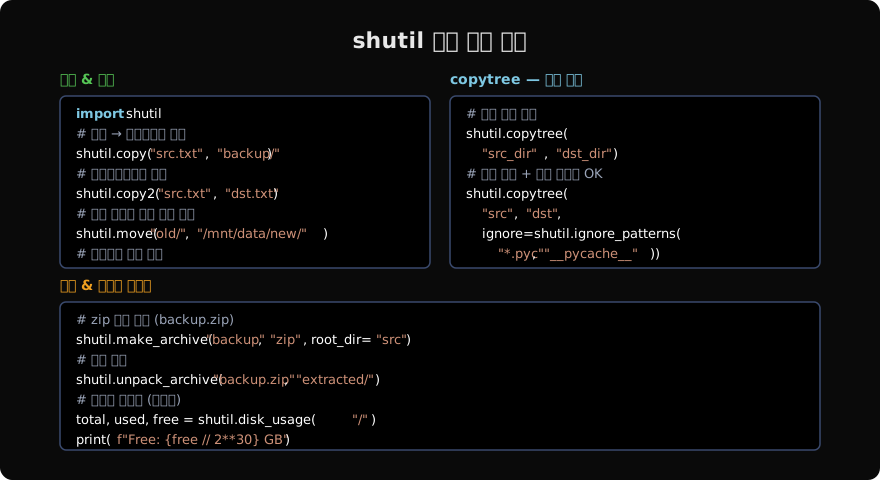
shutil.copy("src.txt", "dst.txt")
shutil.copy("src.txt", "backup/")  # 디렉토리를 대상으로 지정 가능

# copy2: 파일 내용 + 권한 + 타임스탬프 모두 보존 (cp -p 같은 효과)
shutil.copy2("src.txt", "dst.txt")

# copyfile: 순수 내용만 복사 (권한·메타 무시)
shutil.copyfile("src.txt", "dst.txt")

# 파일 권한만 복사
shutil.copymode("src.txt", "dst.txt")

# 메타데이터(타임스탬프·권한)만 복사
shutil.copystat("src.txt", "dst.txt")
백업 목적이라면 copy2()를 쓰는 것이 안전합니다. 원본 파일의 수정 시각까지 보존되어 나중에 원본인지 복사본인지 구분하기 쉽습니다.
파일/디렉토리 이동
import shutil

# 파일 이동 (이름 변경 효과도 있음)
shutil.move("old_name.txt", "new_name.txt")

# 다른 디렉토리로 이동
shutil.move("file.txt", "/backup/")

# 다른 파일시스템으로도 이동 (os.rename과 달리)
shutil.move("/tmp/data.txt", "/mnt/external/data.txt")os.rename()은 같은 파일시스템 내에서만 동작합니다. 마운트 포인트를 넘어야 하는 경우 shutil.move()를 사용합니다. 내부적으로 copy2() + os.remove()를 수행합니다.
디렉토리 트리 복사 — copytree
import shutil

# src_dir 전체를 dst_dir로 복사 (dst_dir이 없어야 함)
shutil.copytree("src_dir", "dst_dir")

# 기존 대상 디렉토리에 병합 (Python 3.8+)
shutil.copytree("src_dir", "existing_dir", dirs_exist_ok=True)

# 특정 패턴 제외
shutil.copytree(
    "project",
    "project_backup",
    ignore=shutil.ignore_patterns("*.pyc", "__pycache__", ".git")
)
dirs_exist_ok=True 옵션이 추가된 것은 Python 3.8입니다. 이전 버전에서는 dst_dir이 이미 존재하면 예외가 발생합니다.
디렉토리 트리 삭제 — rmtree
import shutil

# 비어있지 않은 디렉토리도 통째로 삭제
shutil.rmtree("old_project")

# 삭제 실패 시 처리 (예: 읽기 전용 파일)
def on_error(func, path, exc_info):
    import os, stat
    os.chmod(path, stat.S_IWRITE)
    func(path)

shutil.rmtree("protected_dir", onerror=on_error)rmtree()는 매우 강력합니다. 실수로 잘못된 경로를 넣으면 돌이킬 수 없습니다. 프로덕션 코드에서는 삭제 전 경로를 검증하는 로직을 반드시 추가합니다.
압축 파일 생성과 해제
import shutil

# zip 파일 생성 (backup.zip)
# base_name: 파일명(확장자 제외), format: 'zip'|'tar'|'gztar'|'bztar'|'xztar'
shutil.make_archive(
    "backup",      # 생성할 파일 이름 (backup.zip)
    "zip",         # 포맷
    root_dir=".",  # 아카이브의 루트 디렉토리
    base_dir="src" # 실제로 압축할 대상
)

# 압축 해제 (확장자 보고 포맷 자동 감지)
shutil.unpack_archive("backup.zip", "extracted/")

# tar.gz 생성
shutil.make_archive("backup", "gztar", root_dir=".", base_dir="src")zipfile, tarfile 모듈보다 단순한 케이스에 훨씬 편리합니다. 세밀한 제어가 필요할 때는 해당 모듈을 직접 씁니다.
디스크 사용량 확인
import shutil

total, used, free = shutil.disk_usage("/")
print(f"Total: {total // 2**30} GB")
print(f"Used:  {used  // 2**30} GB")
print(f"Free:  {free  // 2**30} GB")
which — 실행 파일 경로 찾기
import shutil

python_path = shutil.which("python3")
print(python_path)  # /usr/bin/python3

if shutil.which("git") is None:
print("git이 설치되지 않았습니다.")shutil.which()는 쉘의 which 명령과 동일하게 PATH 환경변수를 탐색합니다.
shutil vs os 정리
| 작업 | os | shutil |
|---|---|---|
| 파일 이름 변경 | os.rename() (같은 fs만) | shutil.move() (fs 경계 OK) |
| 파일 복사 | 직접 지원 없음 | shutil.copy2() |
| 디렉토리 복사 | 없음 | shutil.copytree() |
| 재귀 삭제 | 없음 | shutil.rmtree() |
| 압축 생성 | 없음 | shutil.make_archive() |
지난 글: sys 모듈: Python 인터프리터와 직접 대화하기
다음 글: subprocess: 외부 프로세스 실행하기
읽어주셔서 감사합니다. 😊
PALDYN / ARTICLE AI
글의 개념, 수식, 코드에 대해 물어보세요.
질문과 관련된 문단을 골라 답변의 문맥으로 사용합니다.생각 중 · 0초