

Testing Library — 사용자 관점 UI 컴포넌트 테스트
Testing Library의 사용자 중심 철학, 쿼리 우선순위, screen API, fireEvent vs userEvent, waitFor 비동기 처리, @testing-library/jest-dom 매처를 정리합니다.
지난 글에서 Mocha + Chai 조합을 살펴봤습니다. 이번에는 Testing Library를 다룹니다. Testing Library는 “구현 세부사항이 아닌, 사용자가 상호작용하는 방식으로 테스트하라”는 철학을 가진 UI 테스트 도구입니다. React, Vue, Svelte, Angular 등 다양한 프레임워크를 지원하며, 내부 상태나 컴포넌트 메서드를 직접 검증하는 대신 실제 DOM을 통해 사용자 동작을 시뮬레이션합니다.
핵심 철학
“The more your tests resemble the way your software is used, the more confidence they can give you.” — Kent C. Dodds
Testing Library는 컴포넌트 내부(state, refs, private methods)에 직접 접근하는 것을 의도적으로 어렵게 만듭니다. 대신 DOM 렌더링 결과에서 사용자가 보는 것(텍스트, 역할, 레이블)으로 요소를 찾고, 사용자 동작(클릭, 타이핑, 포커스)으로 상호작용합니다. 이 방식은 리팩토링 후에도 테스트가 깨지지 않는다는 장점이 있습니다.
설치
# React 기준
npm install -D @testing-library/react @testing-library/user-event @testing-library/jest-dom
# setupFilesAfterFramework에 추가
# import '@testing-library/jest-dom'@testing-library/jest-dom은 toBeInTheDocument(), toHaveValue(), toBeDisabled() 같은 DOM 전용 Jest 매처를 추가합니다. vitest.setup.ts 또는 jest.setup.ts에서 한 번 import하면 모든 테스트 파일에 자동 적용됩니다.
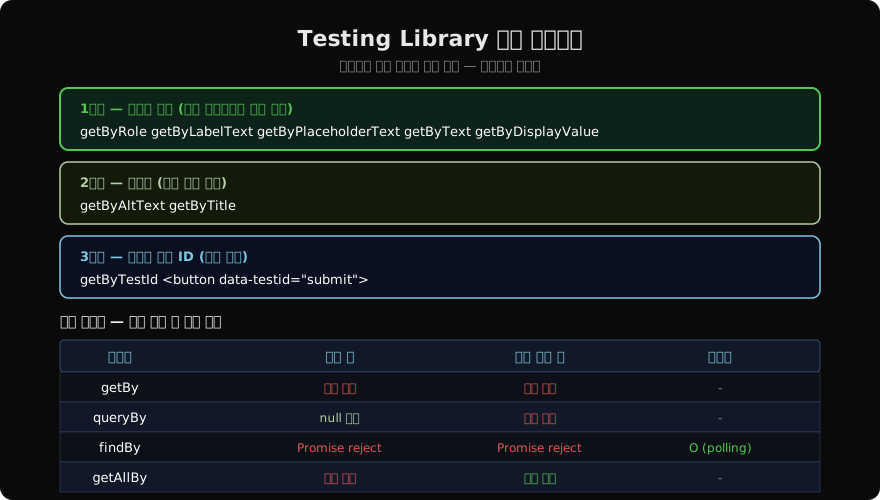
쿼리 — 요소 찾는 방법
Testing Library의 모든 API는 “어떻게 요소를 찾는가”에서 시작합니다. 쿼리는 접근성 우선순위에 따라 선택해야 합니다.
import { render, screen } from '@testing-library/react'
import { LoginForm } from './LoginForm'

render(<LoginForm />)

// 1순위: getByRole — ARIA 역할로 찾기 (가장 권장)
const submitBtn = screen.getByRole('button', { name: '로그인' })
const emailInput = screen.getByRole('textbox', { name: '이메일' })

// 1순위: getByLabelText — form 요소 레이블로 찾기
const passwordInput = screen.getByLabelText('비밀번호')

// 1순위: getByText — 텍스트 콘텐츠로 찾기
const heading = screen.getByText('회원 로그인')

// 3순위(최후 수단): getByTestId
const form = screen.getByTestId('login-form')
screen 객체는 렌더링된 전체 문서에서 쿼리합니다. render의 반환값에서 구조 분해로 쿼리를 가져오는 구식 패턴 대신 screen을 사용하면 중첩 컨테이너 참조 오류를 피할 수 있습니다.
쿼리 접두어 선택
접두어에 따라 요소가 없거나 여러 개일 때의 동작이 다릅니다.
// getBy: 요소 없으면 에러 (존재해야 하는 요소에 사용)
const btn = screen.getByRole('button')

// queryBy: 요소 없으면 null (존재하지 않음을 검증할 때 사용)
expect(screen.queryByText('에러 메시지')).not.toBeInTheDocument()

// findBy: Promise 반환, 비동기 렌더링 후 나타나는 요소
const result = await screen.findByText('저장 완료')

// getAllBy / queryAllBy / findAllBy: 여러 요소 배열 반환
const items = screen.getAllByRole('listitem')
expect(items).toHaveLength(3)
userEvent vs fireEvent
fireEvent는 단순히 DOM 이벤트를 디스패치합니다. userEvent는 실제 사용자 상호작용을 시뮬레이션합니다 — 클릭 시 pointerdown → mousedown → pointerup → mouseup → click 순서로 이벤트를 발생시키고, 타이핑 시 각 키 입력마다 keydown → keypress → keyup을 처리합니다.
import userEvent from '@testing-library/user-event'

// 권장: userEvent.setup()으로 인스턴스 생성 후 사용
const user = userEvent.setup()

await user.click(screen.getByRole('button'))
await user.type(screen.getByLabelText('이름'), 'Alice')
await user.clear(screen.getByRole('textbox'))
await user.selectOptions(screen.getByRole('combobox'), 'kr')
await user.tab() // 포커스 이동

// fireEvent는 단순 이벤트가 필요할 때
import { fireEvent } from '@testing-library/react'
fireEvent.change(input, { target: { value: 'test' } })userEvent를 사용하면 실제 브라우저 동작에 더 가까운 이벤트 시퀀스를 통해 포커스 관리, 폼 유효성 검사 등이 올바르게 트리거됩니다.
비동기 렌더링 처리
API 호출이나 지연 로딩 등으로 컴포넌트가 비동기 업데이트되는 경우를 처리합니다.
it('사용자 목록을 로드한다', async () => {
  // MSW 또는 vi.fn()으로 API 목킹
  server.use(
    http.get('/api/users', () =>
      HttpResponse.json([{ id: 1, name: 'Alice' }])
    )
  )

  render(<UserList />)

  // 로딩 인디케이터가 사라질 때까지 대기
  await waitFor(() => {
    expect(screen.queryByText('로딩 중...')).not.toBeInTheDocument()
  })

  // 결과 검증
  expect(screen.getByText('Alice')).toBeInTheDocument()
})waitFor는 콜백이 에러 없이 실행될 때까지 최대 1000ms(기본값) 동안 폴링합니다. findByText는 waitFor + getByText의 편의 래퍼입니다.
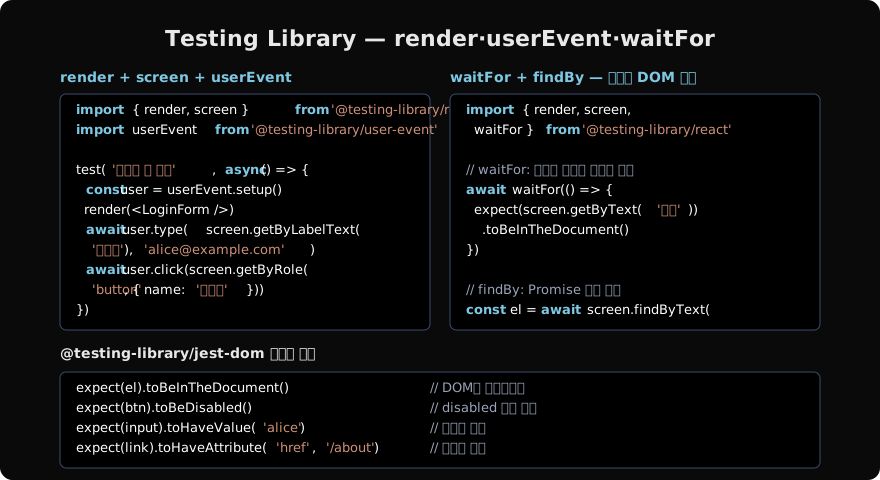
접근성 기반 쿼리의 장점
getByRole은 ARIA 역할과 접근 가능한 이름으로 요소를 찾습니다. <button>로그인</button>은 getByRole('button', { name: '로그인' })으로, <input aria-label="이메일">은 getByRole('textbox', { name: '이메일' })로 찾습니다.
// 컴포넌트 마크업이 바뀌어도 ARIA 역할이 동일하면 테스트가 깨지지 않음
// 이전: <div role="button" onClick={...}>저장</div>
// 이후: <button onClick={...}>저장</button>
// 둘 다 getByRole('button', { name: '저장' }) 으로 찾힘

// 역할 목록: button, link, textbox, checkbox, radio, combobox,
// listbox, option, heading, dialog, alert, img, etc.getByRole이 요소를 찾지 못하면 에러 메시지에 현재 DOM의 ARIA 트리를 출력해 마크업 문제를 진단하기 쉽습니다. 이 과정에서 자연스럽게 접근성을 개선하게 됩니다.
MSW와 함께하는 API 목킹
Testing Library와 MSW(Mock Service Worker)를 조합하면 네트워크 레이어에서 API를 목킹할 수 있습니다.
// test/setup.ts
import { setupServer } from 'msw/node'
import { http, HttpResponse } from 'msw'

export const server = setupServer()

beforeAll(() => server.listen())
afterEach(() => server.resetHandlers())
afterAll(() => server.close())

// 개별 테스트에서 핸들러 오버라이드
server.use(
  http.get('/api/profile', () =>
    HttpResponse.json({ name: 'Alice', role: 'admin' })
  )
)
MSW는 fetch/XMLHttpRequest를 인터셉트해 실제 네트워크 없이 응답을 제공합니다. 컴포넌트가 HTTP 클라이언트 구현에 종속되지 않아 axios, fetch 등 어떤 라이브러리를 써도 동일한 목킹이 동작합니다.
지난 글: Mocha + Chai — 유연한 클래식 테스트 스택
다음 글: Playwright vs Cypress — E2E 테스트 프레임워크 완전 비교
읽어주셔서 감사합니다. 😊
PALDYN / ARTICLE AI
글의 개념, 수식, 코드에 대해 물어보세요.
질문과 관련된 문단을 골라 답변의 문맥으로 사용합니다.생각 중 · 0초