AI 이미지 편집: 인페인팅·아웃페인팅·스타일 전이·DDIM Inversion
SD 인페인팅, SAM 기반 객체 제거, InstructPix2Pix, DDIM Inversion, DreamBooth·LoRA 스타일 개인화까지 AI 이미지 편집 기법 전체를 코드와 함께 해설합니다.
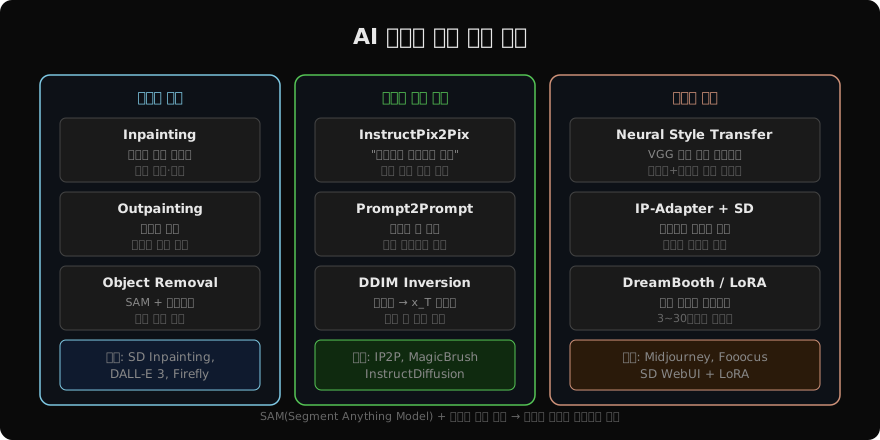
지난 글에서 포즈·깊이·엣지로 이미지 생성을 정밀하게 제어하는 ControlNet을 다뤘다. 이번 글에서는 이미 존재하는 이미지를 지우고, 확장하고, 스타일을 바꾸고, 특정 요소만 변경하는 AI 이미지 편집 기법들을 완전 해설한다. 실무에서 생성보다 편집이 더 자주 쓰인다.
AI 이미지 편집 기법 분류
1. 인페인팅(Inpainting)
마스크 영역을 다시 생성하는 가장 기본적인 편집 방식이다. 프롬프트로 원하는 내용을 지정하면 주변 맥락에 자연스럽게 녹아든다.
from diffusers import StableDiffusionInpaintPipeline
from PIL import Image, ImageDraw
import torch

pipe = StableDiffusionInpaintPipeline.from_pretrained(
    "runwayml/stable-diffusion-inpainting",
    torch_dtype=torch.float16,
).to("cuda")

# 프로그래밍 방식으로 마스크 생성
def create_mask(width: int, height: int, bbox: tuple) -> Image.Image:
    """bounding box로 마스크 생성 (흰색=편집 영역)"""
    mask = Image.new("RGB", (width, height), "black")
    draw = ImageDraw.Draw(mask)
    draw.rectangle(bbox, fill="white")
    return mask

image = Image.open("portrait.jpg").convert("RGB").resize((512, 512))
# 이미지의 상단 40%를 편집 영역으로 지정
mask = create_mask(512, 512, bbox=(50, 50, 460, 200))

result = pipe(
    prompt="a clear blue sky with light clouds",
    negative_prompt="ugly, low quality",
    image=image,
    mask_image=mask,
    num_inference_steps=30,
    guidance_scale=7.5,
).images[0]

result.save("inpainted.png")
SAM + 인페인팅으로 객체 제거
Segment Anything Model(SAM)을 사용하면 마스크 없이도 클릭만으로 객체를 분리해 제거할 수 있다.
from segment_anything import SamPredictor, sam_model_registry
import numpy as np

# SAM으로 마스크 자동 생성
sam = sam_model_registry["vit_h"](
    checkpoint="sam_vit_h_4b8939.pth"
).to("cuda")
predictor = SamPredictor(sam)

image_np = np.array(Image.open("street.jpg"))
predictor.set_image(image_np)

# 포인트 클릭으로 객체 선택 (x, y 좌표)
input_point = np.array([[350, 280]])
input_label = np.array([1])  # 1=전경 포인트

masks, scores, _ = predictor.predict(
    point_coords=input_point,
    point_labels=input_label,
    multimask_output=True,
)

# 가장 높은 score의 마스크 선택
best_mask = masks[scores.argmax()]
mask_image = Image.fromarray(
    (best_mask * 255).astype(np.uint8)
).convert("RGB")

# 객체 제거: 빈 프롬프트로 인페인팅
result = pipe(
    prompt="empty street background, realistic",
    image=Image.fromarray(image_np).resize((512, 512)),
    mask_image=mask_image.resize((512, 512)),
    num_inference_steps=30,
).images[0]
2. 아웃페인팅(Outpainting)
이미지의 경계를 확장해 보이지 않는 영역을 생성한다. 가로로 긴 이미지를 정사각형으로 만들거나, 특정 방향으로 장면을 이어나갈 때 사용한다.
def outpaint(
    image: Image.Image,
    direction: str = "right",   # left/right/top/bottom
    extend_px: int = 256,
    pipe=None,
    prompt: str = "",
) -> Image.Image:
    """이미지를 한 방향으로 확장"""
    w, h = image.size

    if direction == "right":
        new_w = w + extend_px
        canvas = Image.new("RGB", (new_w, h), (128, 128, 128))
        canvas.paste(image, (0, 0))
        mask = Image.new("RGB", (new_w, h), "black")
        # 새로운 영역은 흰색 마스크
        mask_draw = ImageDraw.Draw(mask)
        mask_draw.rectangle((w, 0, new_w, h), fill="white")
    # ... 다른 방향도 유사하게 처리

    # 캔버스 + 마스크로 인페인팅
    result = pipe(
        prompt=prompt or "continue the scene naturally",
        image=canvas.resize((512, 512)),
        mask_image=mask.resize((512, 512)),
        num_inference_steps=30,
    ).images[0]

    return result.resize((new_w, h))
3. DDIM Inversion 기반 편집
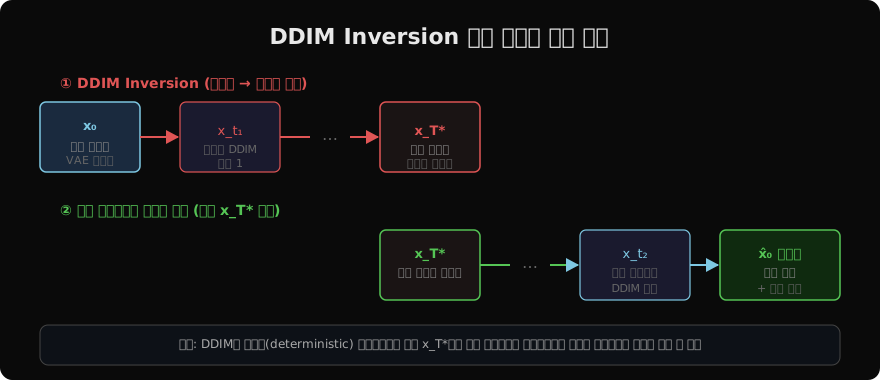
DDIM Inversion은 원본 이미지를 역방향으로 노이즈 공간까지 이동시킨 뒤, 편집 프롬프트로 다시 생성해 구조를 유지하면서 내용을 바꾸는 기법이다.
from diffusers import DDIMInverseScheduler, DDIMScheduler

@torch.no_grad()
def ddim_inversion(
    pipe,
    image: Image.Image,
    prompt: str = "",
    num_steps: int = 50,
) -> list[torch.Tensor]:
    """이미지를 노이즈 공간으로 역전"""
    pipe.scheduler = DDIMInverseScheduler.from_config(
        pipe.scheduler.config
    )
    inputs = pipe.feature_extractor(
        images=image, return_tensors="pt"
    )
    latent = pipe.vae.encode(
        inputs["pixel_values"].to("cuda", torch.float16)
    ).latent_dist.mean * 0.18215

    # 역방향으로 노이즈 추가
    text_emb = pipe._encode_prompt(prompt, "cuda", 1, True)
    latents = [latent]
    for t in pipe.scheduler.timesteps:
        noise_pred = pipe.unet(
            latent, t,
            encoder_hidden_states=text_emb
        ).sample
        latent = pipe.scheduler.step(
            noise_pred, t, latent
        ).prev_sample
        latents.append(latent)

    return latents


def edit_with_inversion(
    pipe,
    image: Image.Image,
    src_prompt: str,
    tgt_prompt: str,
    num_steps: int = 50,
) -> Image.Image:
    """DDIM Inversion으로 편집"""
    # 1단계: 역전
    inverted = ddim_inversion(pipe, image, src_prompt, num_steps)

    # 2단계: 편집 프롬프트로 생성
    pipe.scheduler = DDIMScheduler.from_config(
        pipe.scheduler.config
    )
    result = pipe(
        prompt=tgt_prompt,
        latents=inverted[-1],
        num_inference_steps=num_steps,
        guidance_scale=7.5,
    ).images[0]

    return result
4. InstructPix2Pix — 텍스트 지시 편집
from diffusers import StableDiffusionInstructPix2PixPipeline

pipe_ip2p = StableDiffusionInstructPix2PixPipeline.from_pretrained(
    "timbrooks/instruct-pix2pix",
    torch_dtype=torch.float16,
).to("cuda")

image = Image.open("photo.jpg").convert("RGB").resize((512, 512))

edited = pipe_ip2p(
    prompt="make it look like a watercolor painting",
    image=image,
    num_inference_steps=30,
    guidance_scale=7.5,
    image_guidance_scale=1.5,  # 원본 이미지 충실도
).images[0]

# image_guidance_scale: 높을수록 원본에 가깝게 유지
# guidance_scale: 텍스트 프롬프트 충실도
edited.save("watercolor.png")
5. DreamBooth + LoRA로 개인화 스타일
DreamBooth는 3~30장의 이미지로 특정 사람·물체·스타일을 학습하는 파인튜닝 기법이다. LoRA와 결합하면 학습 시간과 VRAM을 크게 절약할 수 있다.
# PEFT + diffusers로 LoRA 학습 (간략 예시)
from peft import LoraConfig, get_peft_model
from diffusers import UNet2DConditionModel

unet = UNet2DConditionModel.from_pretrained(
    "runwayml/stable-diffusion-v1-5",
    subfolder="unet",
    torch_dtype=torch.float32,
)

lora_config = LoraConfig(
    r=16,                          # LoRA 랭크
    lora_alpha=16,
    target_modules=["to_q", "to_v"],  # 어텐션 Q·V만 학습
    lora_dropout=0.0,
    bias="none",
)

unet = get_peft_model(unet, lora_config)
unet.print_trainable_parameters()
# trainable params: 2,154,496 / all params: 861,115,332 (0.25%)

# 학습 후 LoRA 저장
unet.save_pretrained("my_style_lora")

# 추론 시 LoRA 로드
pipe.unet.load_attn_procs("my_style_lora")
편집 기법 선택 가이드
| 목적 | 권장 기법 |
|---|---|
| 배경 제거·변경 | SAM + Inpainting |
| 이미지 확장 | Outpainting |
| 텍스트 지시로 편집 | InstructPix2Pix |
| 구조 유지 + 내용 변경 | DDIM Inversion |
| 특정 스타일 적용 | DreamBooth/LoRA |
| 빠른 스타일 참조 | IP-Adapter |
AI 이미지 편집은 완성된 작품을 “얼마나 원하는 방향으로 변형할 수 있느냐”가 핵심이다. 다음 글에서는 정지 이미지를 넘어 비디오 생성 모델인 Sora·AnimateDiff·Stable Video Diffusion을 다룬다.
지난 글: ControlNet: 포즈·깊이·엣지로 확산 모델을 정밀 제어하기
다음 글: 비디오 생성 모델: Sora·AnimateDiff·SVD 완전 해설
읽어주셔서 감사합니다. 😊