

[Nexacro N] 파일 업로드 진행률
Nexacro N의 FileUpload onprogress 이벤트와 ProgressBar 컴포넌트를 조합해 파일별·전체 업로드 진행률을 실시간으로 표시하고, 업로드 취소를 구현하는 방법을 설명합니다.
지난 글에서 여러 파일을 Dataset에 관리하며 순차적으로 업로드하는 패턴을 살펴보았다. 파일 크기가 클 경우 업로드가 완료될 때까지 사용자는 기다려야 하는데, 진행률 없이 화면이 멈춘 것처럼 보이면 사용자는 오류라고 생각하게 된다. 이 글은 진행률 표시와 취소 구현 방법을 다룬다.
onprogress 이벤트
FileUpload 컴포넌트의 onprogress 이벤트는 데이터 전송 중 주기적으로 발생한다. 이벤트 객체(e)의 두 속성을 활용한다.
| 속성 | 설명 |
|---|---|
e.loaded | 현재까지 전송된 바이트 |
e.total | 전송할 전체 바이트 |
function fileUpload_onprogress(obj, e) {
    var nPct = Math.round((e.loaded / e.total) * 100);
    this.pgbFile.value = nPct;
    this.stcPercent.text = nPct + "%";
}
ProgressBar 컴포넌트(pgbFile)의 value 속성에 0~100 사이 숫자를 설정하면 진행 막대가 채워진다.
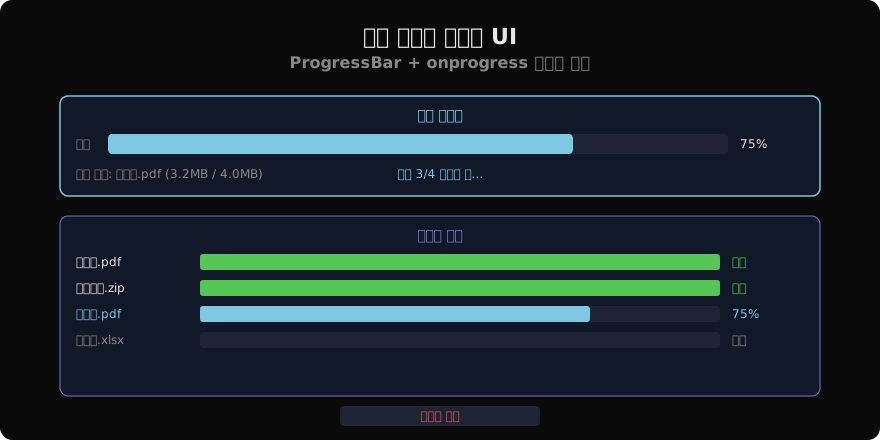
파일별·전체 진행률 동시 표시
다중 파일 업로드에서는 현재 파일 진행률과 전체 진행률을 함께 표시하는 것이 UX에 유리하다.
var nCurrentIdx = 0;

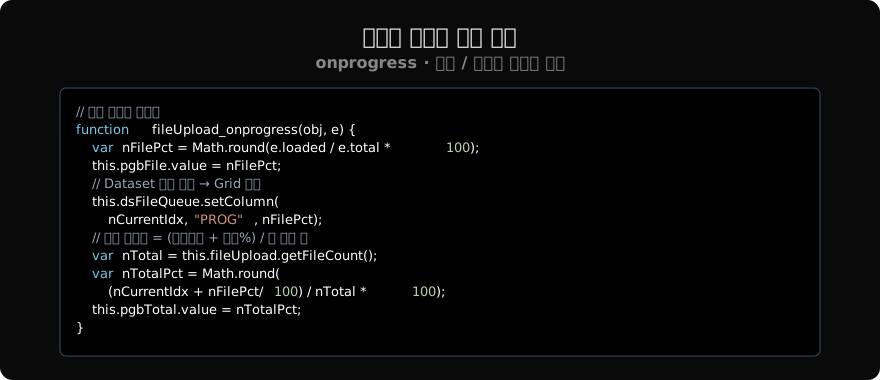
function fileUpload_onprogress(obj, e) {
    var nFilePct = Math.round(e.loaded / e.total * 100);
    this.pgbFile.value  = nFilePct;

    // Dataset에 개별 진행률 저장 → Grid ProgressBar 셀 반영
    this.dsFileQueue.setColumn(nCurrentIdx, "PROG", nFilePct);

    // 전체 = (완료 파일 수 + 현재 파일 진행률) / 전체 파일 수
    var nTotal    = this.fileUpload.getFileCount();
    var nTotalPct = Math.round(
        (nCurrentIdx + nFilePct / 100) / nTotal * 100
    );
    this.pgbTotal.value = nTotalPct;
    this.stcInfo.text   = "파일 " + (nCurrentIdx + 1) + "/" + nTotal
                        + " 업로드 중... " + nTotalPct + "%";
}
Grid에 ProgressBar 셀 표시
Grid 컬럼의 edittype을 "progressbar"로 설정하면 Dataset의 PROG 컬럼 값을 막대로 시각화할 수 있다.
<GridLayout>
  <Col id="colProg" width="160">
    <Body text="bind:PROG" edittype="progressbar" max="100"/>
  </Col>
</GridLayout>text="bind:PROG"로 Dataset 컬럼을 바인딩하면 setColumn() 호출마다 Grid 셀이 자동 갱신된다.
업로드 취소
전송 중 취소가 필요한 경우 cancelUpload() 메서드를 사용한다.
var bCancelled = false;

function btn_cancel_onclick(obj, e) {
    bCancelled = true;
    this.fileUpload.cancelUpload();
    this.stcInfo.text = "업로드가 취소되었습니다.";
    this.pgbTotal.value = 0;
    this.pgbFile.value  = 0;
}

function fileUpload_onuploadcompleted(obj, e) {
    if (bCancelled) {
        bCancelled = false;
        return;
    }
    // 정상 완료 처리
    this.dsFileQueue.setColumn(nCurrentIdx, "STATUS", "완료");
    nCurrentIdx++;
    this.fn_uploadNext();
}
취소 후 완료 콜백이 발생하는 경우가 있으므로 bCancelled 플래그로 구분해 불필요한 후처리를 방지한다.
전송 속도 표시
진행 이벤트 간격과 전송량을 기록해 초당 전송 속도를 계산할 수 있다.
var nLastLoaded = 0;
var nLastTime   = 0;

function fileUpload_onprogress(obj, e) {
    var nNow    = new Date().getTime();
    var nElapsed = (nNow - nLastTime) / 1000;  // 초
    var nSpeed  = (e.loaded - nLastLoaded) / nElapsed;
    this.stcSpeed.text = fn_formatFileSize(nSpeed) + "/s";
    nLastLoaded = e.loaded;
    nLastTime   = nNow;

    // 남은 시간 = 남은 바이트 / 속도
    var nRemaining = (e.total - e.loaded) / nSpeed;
    this.stcRemain.text = Math.ceil(nRemaining) + "초 남음";
}nElapsed가 0에 가까울 때 나눗셈 오류를 방지하려면 if (nElapsed < 0.1) return; 조건을 추가한다.
UI 잠금 처리
업로드 중에는 다른 조작을 막아 데이터 불일치를 예방한다.
function fn_startUpload() {
    this.btnUpload.enable = false;
    this.btnCancel.enable = true;
    nCurrentIdx = 0;
    bCancelled  = false;
    this.fn_uploadNext();
}

function fn_onAllDone() {
    this.btnUpload.enable = true;
    this.btnCancel.enable = false;
    this.fn_search();
}
정리
업로드 진행률의 핵심은 onprogress 이벤트의 e.loaded / e.total 비율을 ProgressBar.value에 반영하는 것이다. 다중 파일에서는 전체 진행률을 (nCurrentIdx + 현재%) / 전체 파일 수로 계산하고, Dataset의 개별 진행률 컬럼을 Grid에 바인딩해 파일별 상태를 시각화한다.
지난 글: 다중 파일 업로드
다음 글: 파일 서버 처리
읽어주셔서 감사합니다. 😊
PALDYN / ARTICLE AI
글의 개념, 수식, 코드에 대해 물어보세요.
질문과 관련된 문단을 골라 답변의 문맥으로 사용합니다.생각 중 · 0초