

[Nexacro N] Grid Format Editor — 그리드 포맷 에디터 활용
Nexacro N Grid Format Editor의 Formats·Format·Columns·Rows·Band 계층 구조, Cell 속성 설정, 다중 Format을 이용한 조회/편집 전환 패턴을 설명합니다.
지난 글에서 Grid의 기본 구조를 살펴봤습니다. 이번에는 Grid의 시각적 레이아웃을 정의하는 Format Editor를 다룹니다. Format Editor는 Studio에서 그리드를 시각적으로 설계하는 도구이자, XML로 직접 작성하는 구조적 계층입니다.
Format Editor 계층 구조
Grid의 XML 내부는 Formats → Format → Columns/Rows → Band → Cell 순서로 중첩됩니다.
Grid
  └── Formats
        └── Format (id="default")
              ├── Columns     ← 각 열의 너비 정의
              ├── Rows        ← 각 행의 높이와 밴드 소속 정의
              └── Band (head / body / foot)
                    └── Cell  ← 실제 데이터 매핑 단위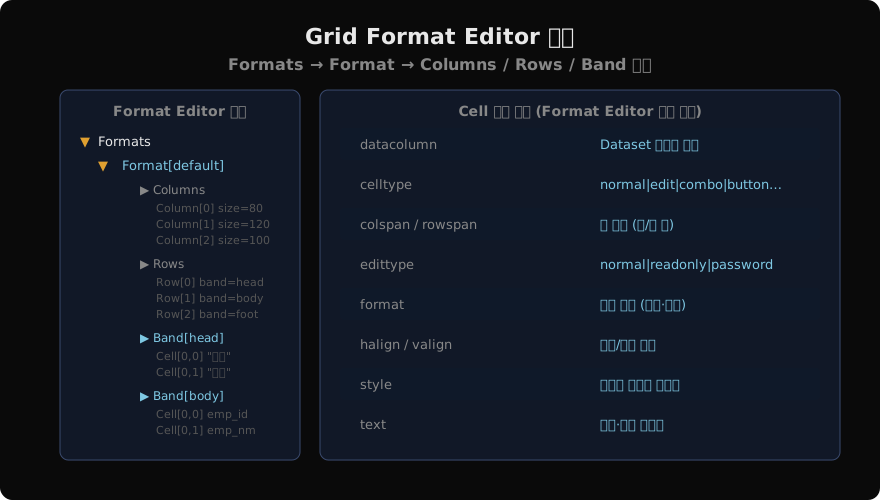
Columns 설정
Columns에서 열의 개수와 각 너비를 정의합니다. 열 인덱스(0-based)는 Band의 Cell col 속성과 대응합니다.
<Columns>
  <Column size="60"/>   <!-- col=0: 행번호 -->
  <Column size="100"/>  <!-- col=1: 사번 -->
  <Column size="120"/>  <!-- col=2: 성명 -->
  <Column size="150"/>  <!-- col=3: 부서명 -->
  <Column size="120"/>  <!-- col=4: 입사일 -->
</Columns>
size 단위는 픽셀입니다. 열 너비를 0으로 설정하면 해당 열이 숨겨집니다.
Rows 설정
Rows는 행의 높이와 어느 Band에 속하는지를 정의합니다.
<Rows>
  <Row size="24" band="head"/>
  <Row size="24" band="body"/>
  <Row size="24" band="foot"/>
</Rows>band가 head면 헤더 행, body면 데이터 반복 행, foot이면 푸터 행입니다. Row를 여러 개 추가하면 다중 행 헤더나 다중 행 바디를 만들 수 있습니다.
Cell 속성
Band 내의 Cell이 실제 데이터 매핑과 스타일을 정의하는 핵심 단위입니다.
| 속성 | 설명 | 예시 |
|---|---|---|
col | 열 인덱스 | 0, 1 |
row | 행 인덱스 (다중 행일 때) | 0, 1 |
text | 헤더 텍스트 | "사번" |
datacolumn | 데이터 컬럼명 | "emp_id" |
celltype | 셀 타입 | normal, edit, combo |
colspan | 열 병합 수 | 2 |
rowspan | 행 병합 수 | 2 |
halign | 수평 정렬 | left, center, right |
format | 표시 형식 | "date", "#,##0" |
셀 병합 — colspan / rowspan
<!-- head Band에서 열 병합 -->
<Cell col="2" colspan="2" text="이름 / 부서"/>
<Cell col="4" text="입사일"/>colspan="2"는 col=2부터 col=3까지 두 열을 하나로 합칩니다. 다중 헤더(상·하 헤더)는 rowspan으로 구현합니다.
format 속성 — 표시 형식
숫자와 날짜에 형식을 지정합니다.
<!-- 날짜 형식 -->
<Cell col="4" datacolumn="hire_dt" format="date"/>

<!-- 천 단위 구분 숫자 -->
<Cell col="5" datacolumn="salary" format="#,##0"/>

<!-- 소수점 2자리 -->
<Cell col="6" datacolumn="rate" format="#,##0.00"/>format="date"는 YYYYMMDD 문자열을 YYYY-MM-DD로 자동 변환해 표시합니다.
다중 Format — 조회/편집 모드 분리
Formats 안에 여러 Format을 정의하면 그리드를 두 가지 이상의 레이아웃으로 전환할 수 있습니다. 가장 흔한 패턴은 읽기 전용 포맷(view)과 편집 허용 포맷(edit)을 분리하는 것입니다.
<Formats>
  <Format id="view">
    <!-- body Band: celltype=normal, edittype=readonly -->
    ...
  </Format>
  <Format id="edit">
    <!-- body Band: celltype=edit, edittype=normal -->
    ...
  </Format>
</Formats>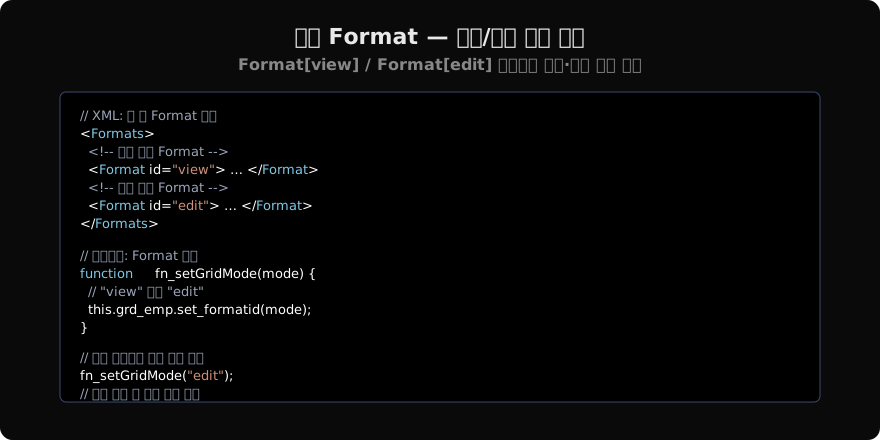
스크립트에서 set_formatid()로 전환합니다.
// 수정 버튼 클릭
function btn_edit_onclick(obj, e) {
  this.grd_emp.set_formatid("edit");
  this.btn_save.set_visible(true);
  this.btn_edit.set_visible(false);
}

// 저장 완료 후 조회 모드 복귀
function fn_afterSave() {
  this.grd_emp.set_formatid("view");
  this.btn_save.set_visible(false);
  this.btn_edit.set_visible(true);
}
컬럼 너비 동적 변경
// 스크립트에서 열 너비 변경
this.grd_emp.setFormatColProperty(0, "size", 80);

// 열 숨기기
this.grd_emp.setFormatColProperty(1, "size", 0);
setFormatColProperty(colIndex, property, value)로 런타임에 열 너비를 조정합니다.
정리
Format Editor는 Grid의 시각적 설계를 담당합니다. Columns-Rows-Band-Cell 계층을 이해하면 복잡한 다중 헤더나 조회/편집 포맷 전환도 명확하게 구성할 수 있습니다. 다음 글에서는 셀 타입(celltype)별 세부 기능을 살펴봅니다.
지난 글: Nexacro N Grid — 그리드 컴포넌트 개요
다음 글: Nexacro N Grid Cell Types — 셀 타입 완전 가이드
읽어주셔서 감사합니다. 😊
PALDYN / ARTICLE AI
글의 개념, 수식, 코드에 대해 물어보세요.
질문과 관련된 문단을 골라 답변의 문맥으로 사용합니다.생각 중 · 0초