

TypeScript 개발 환경 설치: Node.js부터 tsconfig까지
Node.js 설치부터 TypeScript 전역 설치, 프로젝트 초기화, tsconfig.json 핵심 옵션 설정까지 단계별로 안내합니다. VS Code 연동과 ts-node를 이용한 빠른 실행 방법도 다룹니다.
지난 글에서 TypeScript와 JavaScript의 차이를 코드로 확인했다. 이제 직접 설치하고 써볼 차례다. 이 글은 TypeScript 개발 환경을 처음부터 구성하는 완전한 가이드다. macOS, Windows, Linux 모두 같은 방식으로 설치한다.
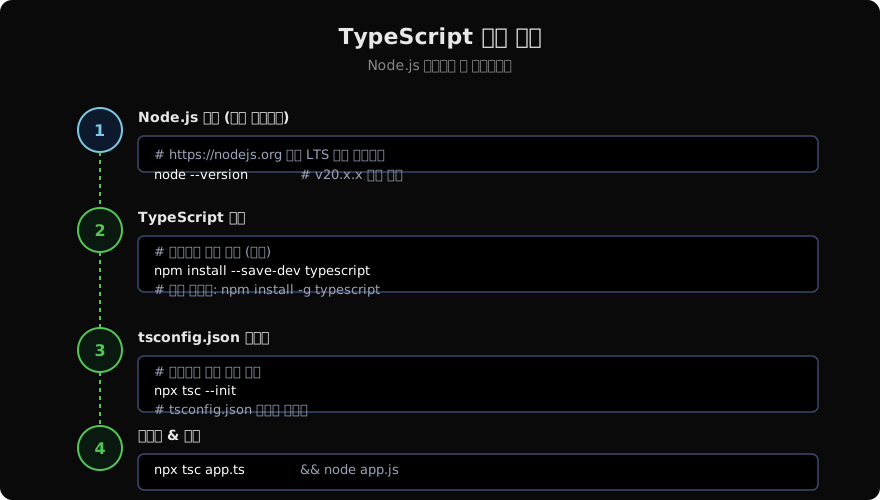
사전 준비: Node.js 설치 확인
TypeScript는 npm으로 설치하므로 Node.js가 먼저 필요하다.
# 버전 확인
node --version  # v18.x 이상 권장 (v20.x LTS 최적)
npm --version   # 9.x 이상

# 미설치 시 — nodejs.org에서 LTS 버전 다운로드
# 또는 nvm(Node Version Manager) 사용 권장
curl -o- https://raw.githubusercontent.com/nvm-sh/nvm/v0.39.0/install.sh | bash
nvm install --lts
nvm use --lts
TypeScript 설치
TypeScript는 전역과 로컬 두 가지 방식으로 설치할 수 있다.
# 전역 설치 (tsc 명령어를 어디서든 사용)
npm install -g typescript

# 버전 확인
tsc --version  # Version 5.x.x

# 로컬 설치 (프로젝트별 버전 관리 — 팀 프로젝트 권장)
npm install --save-dev typescript
npx tsc --version  # 로컬 설치 시 npx 사용
프로젝트에 따라 TypeScript 버전이 다를 수 있으므로, 팀 프로젝트에서는 로컬 설치를 권장한다.
프로젝트 초기화
# 새 프로젝트 디렉터리 생성
mkdir my-ts-project
cd my-ts-project

# npm 프로젝트 초기화
npm init -y

# TypeScript 로컬 설치
npm install --save-dev typescript

# tsconfig.json 자동 생성
npx tsc --init
tsc --init 실행 후 tsconfig.json이 생성된다. 주석이 달린 전체 옵션이 포함된 파일이 만들어진다.
디렉터리 구조 설정
my-ts-project/
├── src/            # TypeScript 소스 파일
│   └── index.ts
├── dist/           # 컴파일된 JavaScript 출력
├── tsconfig.json
└── package.json
# src 디렉터리와 첫 파일 생성
mkdir src
cat > src/index.ts << 'EOF'
const message: string = "Hello, TypeScript!";
console.log(message);
EOFtsconfig.json 핵심 설정
기본 생성된 tsconfig.json을 실용적인 설정으로 정리한다.
{
  "compilerOptions": {
    "target": "ES2022",        // 출력 JS 버전
    "module": "commonjs",      // 모듈 시스템 (Node.js용)
    "lib": ["ES2022"],         // 내장 타입 정의
    "strict": true,            // 엄격 타입 검사 (권장)
    "outDir": "./dist",        // 출력 디렉터리
    "rootDir": "./src",        // 소스 디렉터리
    "declaration": true,       // .d.ts 파일 생성
    "declarationMap": true,    // .d.ts 소스맵 생성
    "sourceMap": true,         // .js.map 생성 (디버깅용)
    "esModuleInterop": true,   // import 호환성
    "skipLibCheck": true,      // .d.ts 타입 검사 건너뜀
    "forceConsistentCasingInFileNames": true
  },
  "include": ["src/**/*"],
  "exclude": ["node_modules", "dist"]
}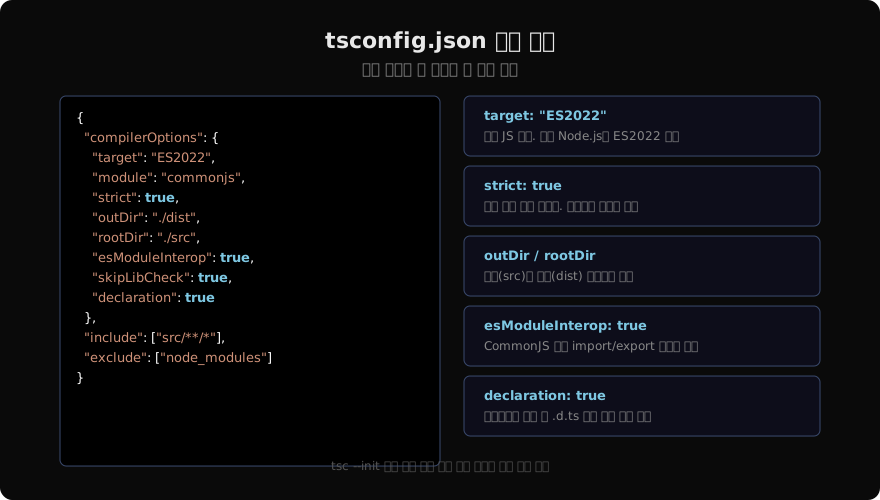
핵심 옵션 설명
target: 출력 JavaScript 버전. Node.js 18+ 환경이라면 ES2022를 사용한다. 구형 브라우저를 지원해야 한다면 ES5 또는 ES6.
strict: 여러 엄격 옵션을 한 번에 활성화한다. 처음부터 켜두는 게 나중에 더 쉽다.
strict: true 가 활성화하는 옵션들:
- strictNullChecks     (null/undefined 별도 타입)
- strictFunctionTypes  (함수 파라미터 반공변성)
- noImplicitAny        (any 암묵 추론 금지)
- strictBindCallApply (bind/call/apply 타입 검사)esModuleInterop: import fs from 'fs' 형식의 default import를 CommonJS 모듈에서도 사용할 수 있게 한다.
컴파일과 실행
# TypeScript 파일 컴파일
npx tsc

# dist/ 디렉터리에 .js 파일 생성됨
node dist/index.js
# Hello, TypeScript!

# 파일 변경 감지 자동 컴파일
npx tsc --watch

# 타입 검사만 (출력 없이)
npx tsc --noEmit
ts-node로 즉시 실행
개발 중에는 컴파일→실행 두 단계가 번거롭다. ts-node를 사용하면 .ts 파일을 직접 실행할 수 있다.
# ts-node 설치
npm install --save-dev ts-node

# .ts 파일 직접 실행
npx ts-node src/index.ts
# Hello, TypeScript!

# 또는 tsx (더 빠른 대안, ESM 지원)
npm install --save-dev tsx
npx tsx src/index.tspackage.json에 스크립트를 추가하면 더 편하다.
{
  "scripts": {
    "build": "tsc",
    "start": "node dist/index.js",
    "dev": "tsx --watch src/index.ts",
    "typecheck": "tsc --noEmit"
  }
}
VS Code 연동
VS Code는 TypeScript를 기본으로 지원한다. 별도 플러그인 없이도 타입 검사, 자동완성, 오류 표시가 작동한다.
// .vscode/settings.json — 저장 시 자동 포맷팅
{
  "editor.formatOnSave": true,
  "editor.defaultFormatter": "esbenp.prettier-vscode",
  "typescript.preferences.includePackageJsonAutoImports": "on",
  "typescript.updateImportsOnFileMove.enabled": "always"
}
유용한 VS Code 단축키:
F12: 정의로 이동Alt+F12: 정의 미리보기Shift+F12: 모든 참조 찾기F2: 심볼 이름 변경 (전체 프로젝트)Ctrl+.: 빠른 수정 (오류 자동 해결 제안)
ESLint 연동 (선택)
TypeScript와 ESLint를 함께 사용하면 더 완벽한 코드 품질 관리가 가능하다.
npm install --save-dev eslint @typescript-eslint/parser @typescript-eslint/eslint-plugin

# .eslintrc.json 생성
cat > .eslintrc.json << 'EOF'
{
  "parser": "@typescript-eslint/parser",
  "plugins": ["@typescript-eslint"],
  "extends": [
    "eslint:recommended",
    "plugin:@typescript-eslint/recommended"
  ],
  "rules": {
    "@typescript-eslint/no-explicit-any": "warn",
    "@typescript-eslint/no-unused-vars": "error"
  }
}
EOF
첫 번째 빌드 실행
# 전체 빌드 확인
npm run build

# 오류가 없다면
npm start

# 개발 모드 실행
npm run dev
모든 설정이 완료됐다. 이제 TypeScript로 코드를 작성할 준비가 됐다.
정리
TypeScript 개발 환경은 Node.js → TypeScript 설치 → tsconfig.json 설정 → ts-node 설치의 순서로 구성한다. 핵심 설정인 strict: true는 처음부터 활성화하는 게 장기적으로 유리하다. 다음 글에서는 tsc 컴파일러의 내부 동작 원리와 다양한 컴파일 옵션을 자세히 살펴본다.
지난 글: TypeScript vs JavaScript: 코드로 보는 결정적 차이
다음 글: tsc 컴파일러 완전 이해: 파이프라인과 핵심 옵션
읽어주셔서 감사합니다. 😊
PALDYN / ARTICLE AI
글의 개념, 수식, 코드에 대해 물어보세요.
질문과 관련된 문단을 골라 답변의 문맥으로 사용합니다.생각 중 · 0초