

Lighthouse와 WebPageTest — 성능 측정 도구 완전 정복
Lighthouse와 WebPageTest의 특징과 차이, CLI·CI 통합 방법, 폭포수 차트로 병목을 찾는 방법, lighthouse-ci로 성능 예산을 관리하는 실전 설정을 정리합니다.
지난 글에서 Core Web Vitals의 각 지표와 개선 방법을 살펴봤습니다. 이번에는 그 지표들을 실제로 측정하는 도구 — Lighthouse와 WebPageTest를 깊이 다룹니다. 어떤 도구를 언제 써야 하는지, 폭포수 차트에서 병목을 어떻게 찾는지, CI에 통합해 성능 회귀를 방지하는 방법을 알아봅니다.
두 도구 비교
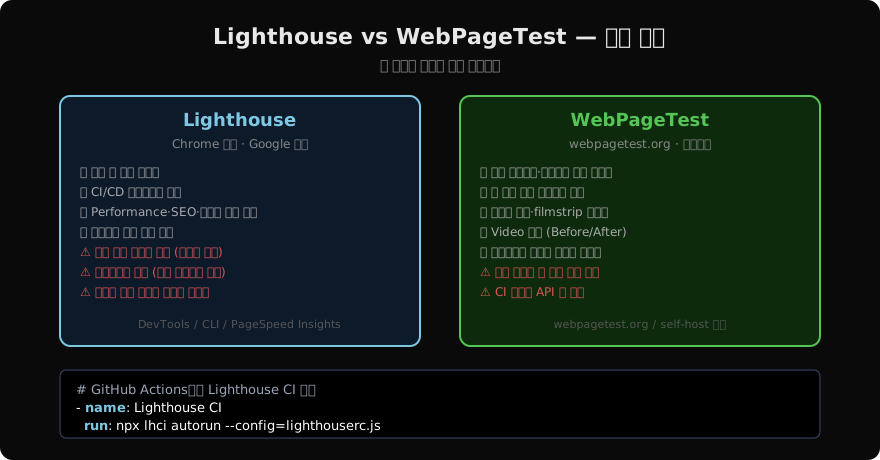
Lighthouse
DevTools에서 실행
Chrome DevTools → Lighthouse 탭 → “Analyze page load” 버튼으로 실행합니다. 시뮬레이션된 모바일·데스크탑 환경에서 Performance, Accessibility, Best Practices, SEO, PWA 다섯 영역을 점검합니다.
# CLI로 실행 — headless Chrome 사용
npm install -g lighthouse
lighthouse https://example.com \
  --output html \
  --output-path ./report.html \
  --chrome-flags="--headless"

# 특정 카테고리만, JSON 출력
lighthouse https://example.com \
  --only-categories=performance \
  --output json \
  --output-path ./perf.json
Lighthouse CI — PR마다 성능 점검
npm install -g @lhci/cli// lighthouserc.js
module.exports = {
ci: {
collect: {
url: ['http://localhost:3000/', 'http://localhost:3000/about'],
numberOfRuns: 3, // 3회 평균으로 노이즈 줄이기
},
assert: {
assertions: {
'categories:performance': ['error', { minScore: 0.9 }], // 90점 미만 실패
'first-contentful-paint': ['warn', { maxNumericValue: 2000 }],
'largest-contentful-paint': ['error', { maxNumericValue: 2500 }],
'cumulative-layout-shift': ['error', { maxNumericValue: 0.1 }],
},
},
upload: {
target: 'temporary-public-storage', // 무료 임시 저장소
},
},
};# .github/workflows/lhci.yml
name: Lighthouse CI
on: [push]
jobs:
lhci:
runs-on: ubuntu-latest
steps:
- uses: actions/checkout@v4
- uses: actions/setup-node@v4
with: { node-version: 20 }
- run: npm ci && npm run build
- run: npm run serve & # 빌드 결과 서빙
- run: npx lhci autorun --config=lighthouserc.js
env:
LHCI_GITHUB_APP_TOKEN: ${{ secrets.LHCI_GITHUB_APP_TOKEN }}WebPageTest
기본 사용
webpagetest.org에서 URL을 입력하면 전 세계 여러 위치의 실제 브라우저와 기기에서 테스트합니다. 특히 폭포수 차트(Waterfall)와 필름스트립(Filmstrip)이 강력합니다.
// WebPageTest API로 자동화
const WPT = require('webpagetest');
const wpt = new WPT('www.webpagetest.org', 'YOUR_API_KEY');

wpt.runTest('https://example.com', {
  location: 'Seoul_EC2:Chrome', // 서울 위치, Chrome
  connectivity: 'Cable',         // 케이블 연결 시뮬레이션
  runs: 3,                       // 3회 측정
  firstViewOnly: false,
}, (err, data) => {
  if (err) { console.error(err); return; }
  const { median } = data.data;
  console.log('LCP:', median.firstView.LargestContentfulPaint, 'ms');
  console.log('CLS:', median.firstView.CumulativeLayoutShift);
});
폭포수 차트 읽기
폭포수 차트는 리소스 로딩 순서와 의존 관계를 시각화합니다.
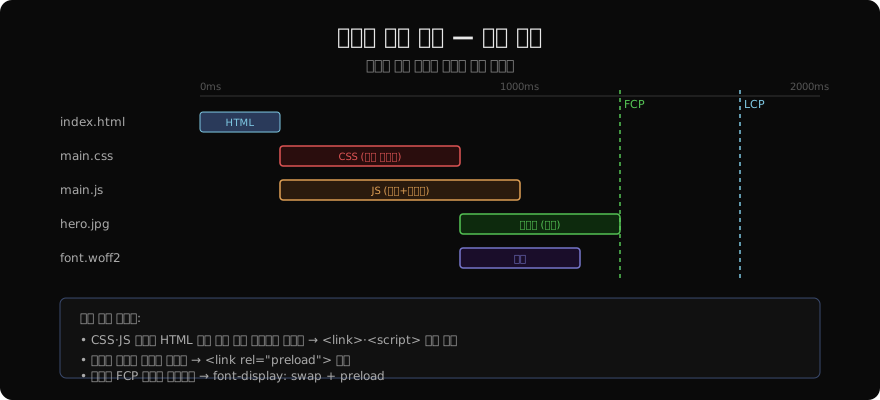
주요 병목 패턴
// ❌ JS가 헤드에 있어 파싱 블로킹
// <head>
//   <script src="main.js"></script>  ← HTML 파싱 중단
// </head>

// ✅ defer로 파싱 블로킹 해제
// <script src="main.js" defer></script>

// ✅ 또는 body 끝에 배치
// <body>
//   ...
//   <script src="main.js"></script>
// </body>
폭포수에서 찾아야 할 것들:
- 긴 TTFB — 서버 응답이 느림. 서버 최적화, CDN, 캐시 확인
- 렌더 블로킹 CSS — 다른 리소스 시작이 CSS 완료 전 지연됨
- 폰트 발견 늦음 — CSS 파싱 후 발견.
<link rel="preload">추가 - 이미지 직렬 로딩 — HTTP/1.1에서 같은 도메인 6개 한계. HTTP/2 또는 도메인 샤딩
Performance Budget (성능 예산)
성능은 시간이 지나면서 자연스럽게 나빠집니다. 예산을 설정해 회귀를 방지합니다.
// webpack.config.js — 번들 크기 예산
module.exports = {
  performance: {
    maxAssetSize: 244 * 1024,      // 244KB 초과 시 경고
    maxEntrypointSize: 244 * 1024,
    hints: 'error',                 // CI 실패로 처리
  },
};
// lighthouserc.js — 성능 지표 예산
module.exports = {
ci: {
assert: {
budgets: [
{
resourceSizes: [
{ resourceType: 'script', budget: 300 }, // JS: 300KB
{ resourceType: 'stylesheet', budget: 100 }, // CSS: 100KB
{ resourceType: 'image', budget: 500 }, // 이미지: 500KB
],
timings: [
{ metric: 'interactive', budget: 5000 }, // TTI: 5s
{ metric: 'first-contentful-paint', budget: 2000 }, // FCP: 2s
],
},
],
},
},
};Lighthouse 점수 해석 주의사항
Lighthouse 점수는 절댓값이 아닌 상대적 지표입니다.
# 같은 페이지도 실행마다 점수가 달라짐 → 여러 번 실행 후 평균
lighthouse https://example.com --output json \
| jq '.categories.performance.score * 100'- 로컬 환경(CPU, 네트워크 상태)에 따라 점수가 5~15점까지 달라질 수 있습니다.
- 시뮬레이션이므로 실제 사용자 데이터(CrUX)와 다를 수 있습니다.
- 점수 자체보다 어떤 항목에서 점수를 잃고 있는지가 중요합니다.
- CI에서는 여러 번 실행해 평균을 사용하거나,
numberOfRuns: 3을 설정합니다.
정리
| 도구 | 강점 | 사용 시나리오 |
|---|---|---|
| Lighthouse (DevTools) | 빠른 피드백, 개선 제안 | 개발 중 빠른 점검 |
| Lighthouse CI | PR 성능 회귀 방지 | CI/CD 파이프라인 |
| PageSpeed Insights | 실제 사용자 CrUX 데이터 | 프로덕션 모니터링 |
| WebPageTest | 실제 기기/위치, 폭포수 차트 | 심층 분석, 전세계 성능 |
지난 글: Core Web Vitals — LCP·INP·CLS 완전 가이드
다음 글: 메모리 프로파일링 — 누수 탐지와 힙 스냅샷
읽어주셔서 감사합니다. 😊
PALDYN / ARTICLE AI
글의 개념, 수식, 코드에 대해 물어보세요.
질문과 관련된 문단을 골라 답변의 문맥으로 사용합니다.생각 중 · 0초